


Many dual boot users may encounter the issue of insufficient storage space on their Ubuntu installation. This guide will walk you through the steps to expand your storage by resizing your disk or partition using built-in tools.
很多双系统用户可能会遇到 Ubuntu 安装空间不足的问题。 本指南将引导您通过使用内置工具调整磁盘或分区大小来扩展存储空间。
NOTE
Backup important data before proceeding.
备份重要数据。
Sufficient available space on your disk.
磁盘上有足够的可用空间。
A live USB with Ubuntu.
带有 Ubuntu 的启动 U 盘。
Step 1: Identify the Partition to Resize
Boot into your Ubuntu system and open a terminal. Use lsblk (list block devices) command to list all available disks and partitions.
启动到您的 Ubuntu 系统并打开终端。使用 lsblk 命令列出所有可用的磁盘和分区。
# sample outputNAME MAJ:MIN RM SIZE RO TYPE MOUNTPOINTSnvme0n1 259:0 0 476.9G 0 disk # Main NVMe SSD├─nvme0n1p1 259:1 0 100M 0 part /boot/efi # EFI System Partition (shared by both systems)├─nvme0n1p2 259:2 0 200G 0 part # Windows C: drive (NTFS)├─nvme0n1p3 259:3 0 250G 0 part / # Ubuntu root partition (ext4)└─nvme0n1p4 259:4 0 26G 0 part [SWAP] # Linux swap areasda 8:0 0 931.5G 0 disk # Secondary HDD├─sda1 8:1 0 500.0G 0 part /mnt/data # Shared data partition (NTFS)└─sda2 8:2 0 431.5G 0 part /mnt/backup # Extra storage (NTFS)loop0 7:0 0 150M 1 loop /snap/core20/2105 # Snap package (virtual mount)loop1 7:1 0 90M 1 loop /snap/snapd/21759 # Snap package (virtual mount)In the output, identify the partition you want to resize. Look for the MOUNTPOINTS column to find the partition currently in use by Ubuntu (usually mounted at / or /home).
在输出中,识别您想要调整大小的分区。查看 MOUNTPOINTS 列以找到当前被 Ubuntu 使用的分区(通常挂载在 / 或 /home)。
NOTE
Linux tree structure typically uses
/to denote the root directory.Linux 目录结构通常使用
/来表示根目录。Linux partitions are typically represented as
/dev/sdXor/dev/nvmeXnYpZ, whereXis the disk identifier,Yis the disk number, andZis the partition number.Linux 分区通常以
/dev/sdX或/dev/nvmeXnYpZ的形式表示,其中X是磁盘标识符,Y是磁盘编号,Z是分区编号。
Step 2: Reserve Unallocated Space
To expand a partition, you need unallocated space adjacent to it. If there is no unallocated space, you may need to shrink another partition to create some.
要扩展分区,您需要在其旁边有未分配的空间。如果没有未分配的空间,您可能需要缩小另一个分区以创建一些空间。
In windows, you can use the Disk Management tool to shrink a partition:
在 Windows 中,您可以使用磁盘管理工具来缩小分区:
-
Press
Win + Xand selectDisk Management.按下
Win + X并选择磁盘管理。 -
Right-click on the partition you want to shrink and select
Shrink Volume.右键点击您想要缩小的分区,然后选择
压缩卷。 -
Enter the amount of space to shrink and click
Shrink.输入要缩小的空间量,然后点击
压缩。
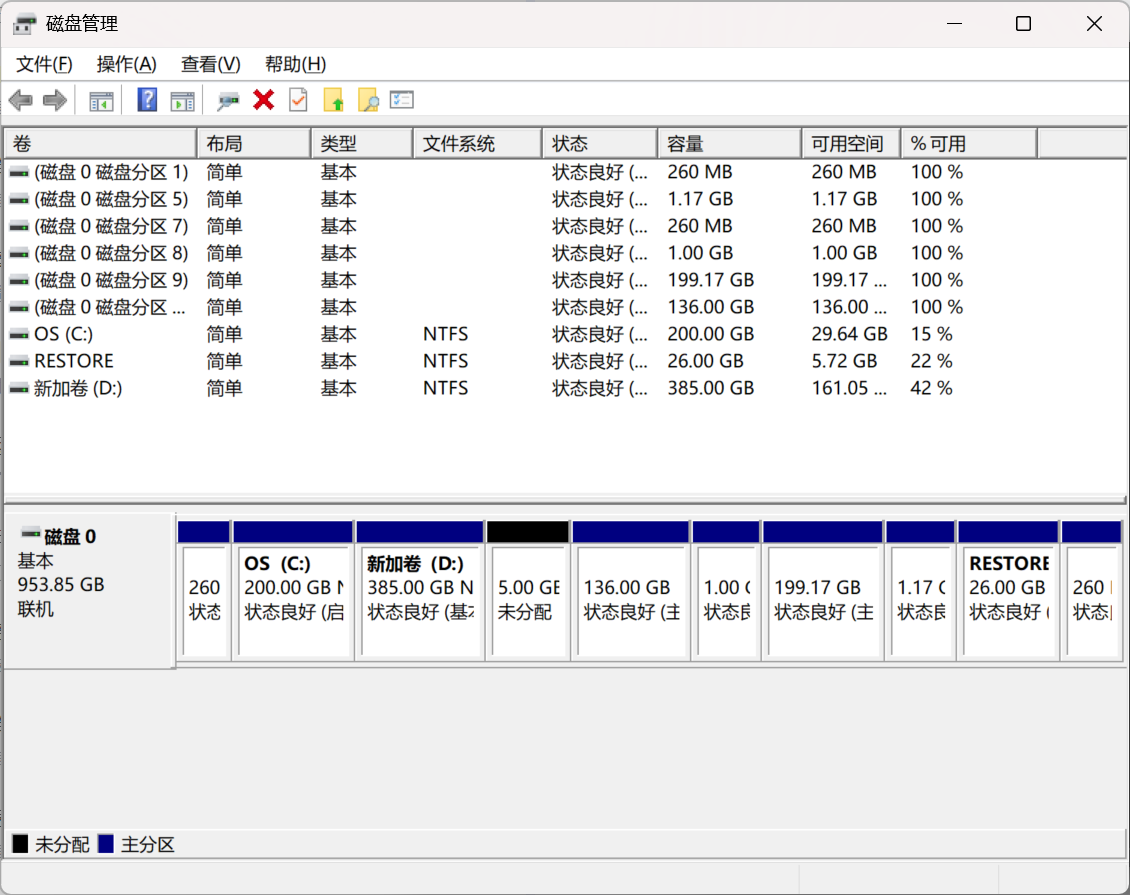
You should now see that a partition block is marked as unallocated space.
你现在应该看到一块分区被标记为未分配空间。
Step 3: Resize the Partition
Now boot from the live USB into the Ubuntu environment. Open a terminal and use sudo gparted command to opne the GNOME Partition Editor as root.
现在从启动 U 盘启动进入 Ubuntu 环境。打开终端并使用 sudo gparted 命令以 root 身份打开 GNOME 分区编辑器。
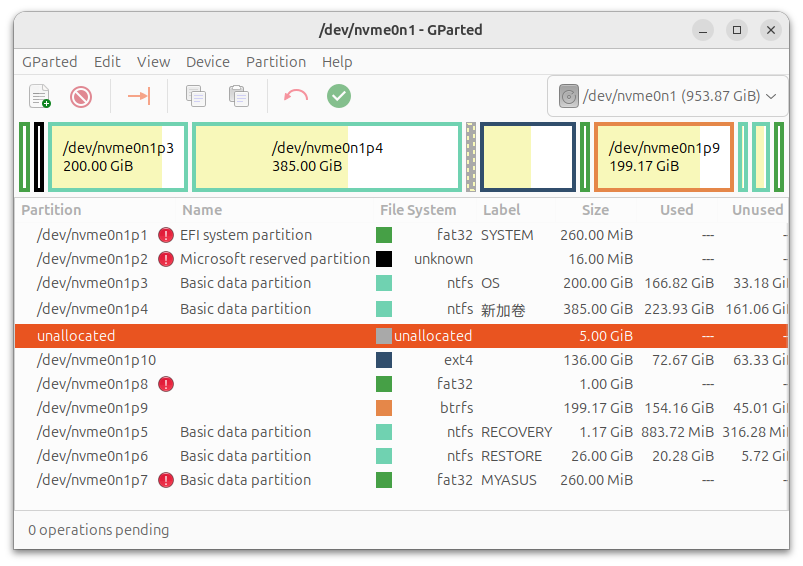
Now a window like the picture above should appear. Identify the partition you want to resize (the one you noted in Step 1) and the unallocated space.
现在应该会出现如上图所示的窗口。识别您想要调整大小的分区(您在步骤 1 中记录的分区)和未分配的空间。
CAUTIONThe partition marked with a key icon is currently mounted and cannot be resized. Make sure no key icon is shown by booting from the live USB. Or you can try to unmount the partition by right-clicking on it and selecting “Unmount”.
带有钥匙图标的分区当前已挂载,无法调整大小。 请确保通过启动 U 盘启动时没有显示钥匙图标。 或者,您可以尝试右键单击该分区并选择“卸载”来卸载该分区
如果空间相邻 / If unallocated space is adjacent
如果未分配的空间与您想要调整大小的分区相邻: If the unallocated space is adjacent to the partition you want to resize:
-
步骤 1: 右键点击该分区并选择
Resize/Move。
Right-click on the partition and selectResize/Move. -
步骤 2: 通过拖动滑块或手动输入所需大小来调整大小,然后点击
Resize/Move以应用更改。
Adjust the size by dragging the slider or entering the desired size manually, then clickResize/Moveto apply the changes. -
步骤 3: 点击绿色应用按钮来执行待处理的操作。
Then click the green apply button to execute the pending operations.
如果空间不相邻 / If unallocated space is NOT adjacent
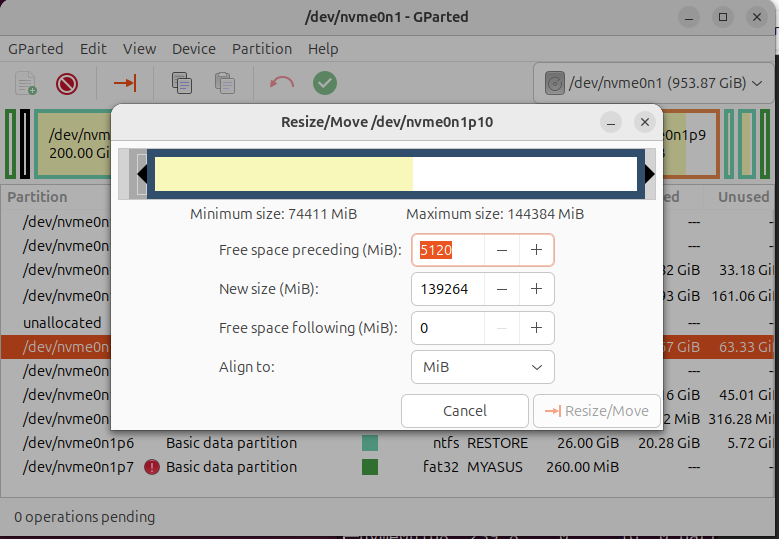
如果未分配的空间不与您想要调整大小的分区相邻,您需要移动中间的分区: If the unallocated space is not adjacent to the partition you want to resize, you may need to move other partitions to make the unallocated space adjacent.
-
操作方法 / How to move:
- 右键点击位于未分配空间和目标分区之间的分区,选择
Resize/Move。
Right-click on the partition that is between the unallocated space and the target partition, selectResize/Move. - 平移分区:将整个分区向左或向右拖动,或调整
Free space preceding(前侧剩余空间) 或Free space following(后侧剩余空间) 的数值。
Drag the entire partition to the left or right, or adjust the number ofFree space precedingorFree space followingto move the partition.
- 右键点击位于未分配空间和目标分区之间的分区,选择
-
重复步骤: 重复此过程,直到未分配空间位于目标分区旁边。
Repeat this process until the unallocated space is next to the target partition. -
完成: 最后按照“情况 1”的说明调整目标分区。
Then proceed to resize the target partition as described above.
Some information may be outdated